Dashboard Design Best Practices: 10 Rules From Real Products
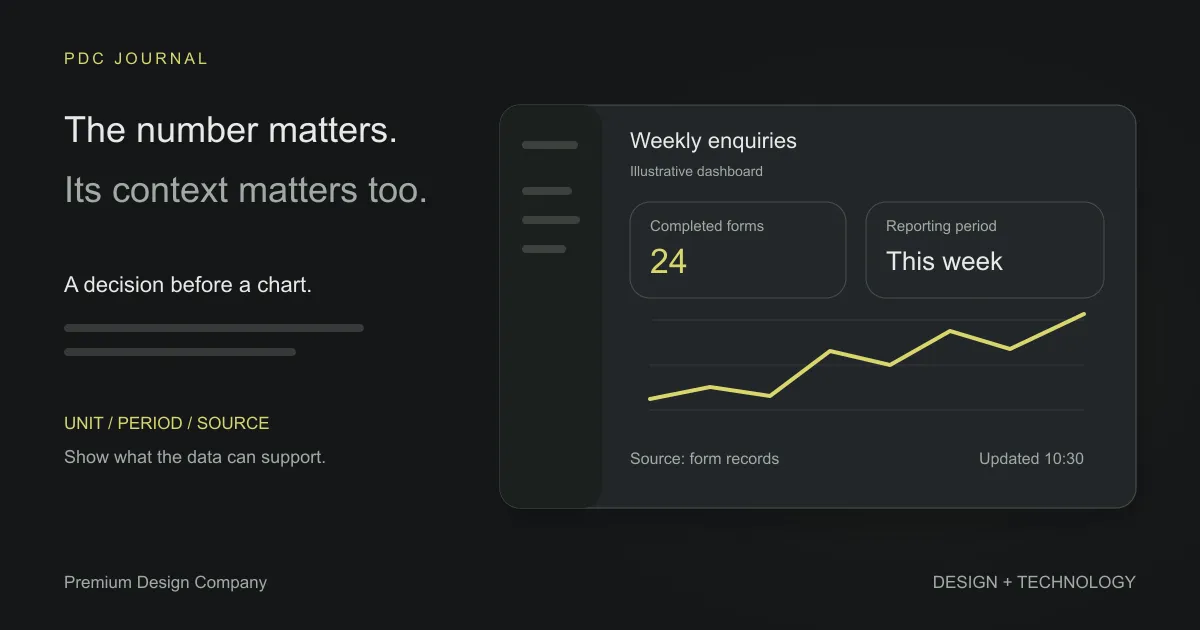
A good dashboard answers the question its user arrived with in a few seconds, and makes the next action one click away. Everything else, from chart choice to colour, serves those two jobs.
A dashboard becomes harder to use when it presents everything the database holds and leaves the reader to decide what matters. The 10 rules below are a practical review framework. Each one is shown on a real dashboard that our founder, Masum Rana, designed: a crypto trading app, a trade-data tool, an investment platform and a B2B admin panel. The examples are Masum’s freelance work before PDC was founded in 2025, including a concept dashboard. They illustrate design decisions, not measured usability results. One rule examines an ambiguity in the original design.
What makes dashboard design different from other UI design?
People may return to a dashboard frequently to check a number or make a decision. A marketing page has to persuade a stranger once. A dashboard has to be fast for someone who has seen it a hundred times.
That changes the priorities. Keep familiar controls and a useful information hierarchy. Choose density around the task rather than treating either empty space or a crowded screen as a goal.
1. Which question does each screen answer?
Start every screen with one written question, not a list of data. If you can’t write the question, the screen isn’t ready to design.
US Trade is a concept dashboard for making US and global trade data readable to people who aren’t economists. Its screens were planned around questions like:
- Which states are exporting more this year?
- Which industries in Wisconsin are growing?
- How does our trade with China compare with theirs with us?
Each question became a screen: an exports ranking, a state’s industries side by side, and a two-country comparison. When the question is clear, choosing what to leave out becomes easy, because anything that doesn’t help answer it goes one level down or off the screen.
2. Should every card lead with one big number?
Use a leading figure when it answers the summary question. Include its unit, time period and comparison basis; a single big number can be misleading when context is missing. Put supporting detail nearby or one level down.
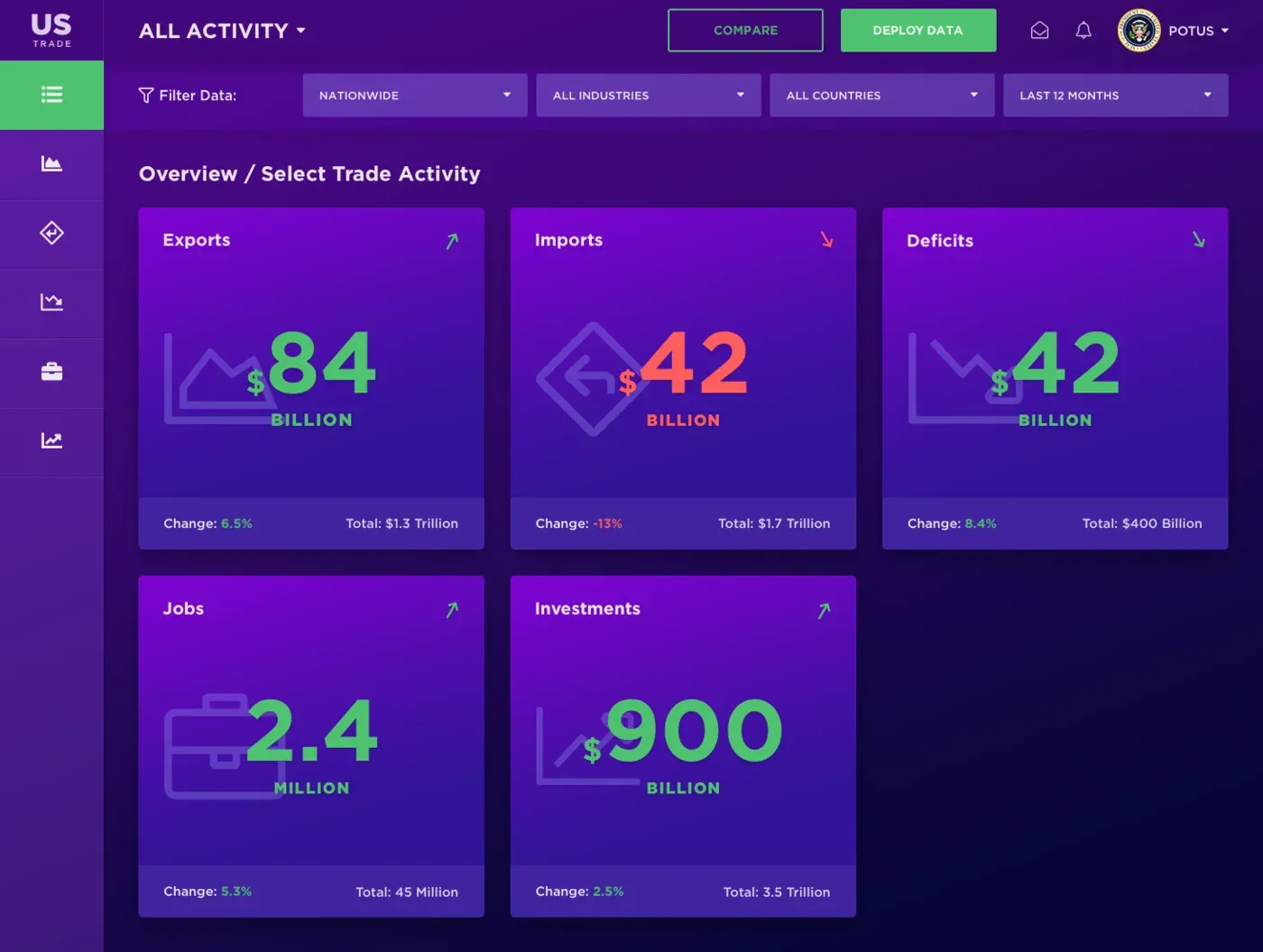
The US Trade overview has five cards (exports, imports, deficits, jobs and investments), each with one large number, an arrow, the percentage change and the running total. You get the state of things at a glance, and anyone who wants more clicks through.
This is progressive disclosure, a pattern Jakob Nielsen described for interfaces in general. On dashboards it matters even more, because the first glance is often the only one.
3. How should you show rankings?
Split them by the question people actually ask. With trade data, that question is “who is growing and who is shrinking?”, not “who is biggest?”
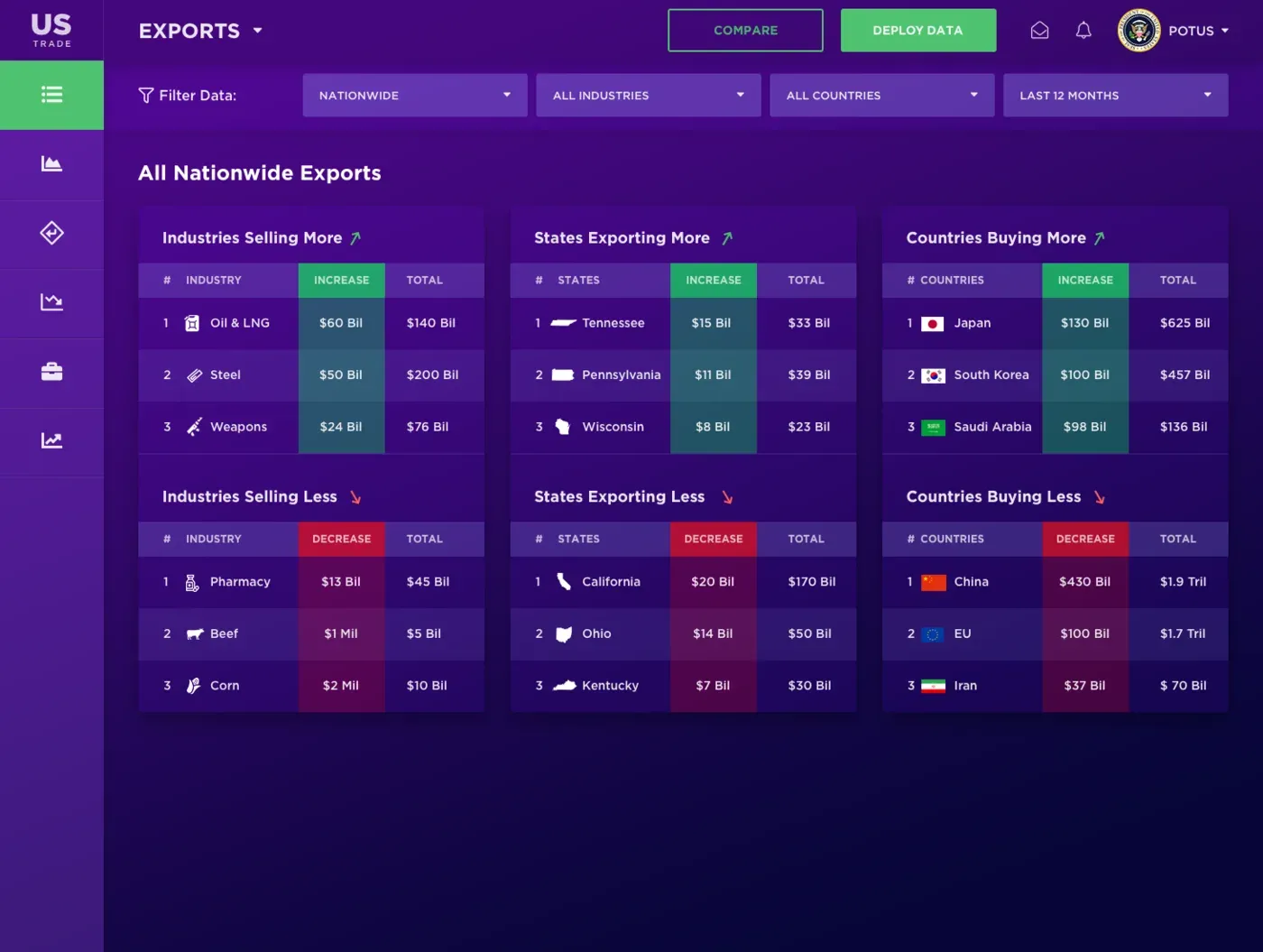
So the US Trade exports screen doesn’t show one long sorted list. It shows six short tables: industries, states and countries that are selling or buying more, and the same three that are selling or buying less. The change column sits next to the name, highlighted in green or red, and the total comes after it. Growth is the story, so growth comes first.
The general rule: sort and group by the comparison the user wants to make, not by the column that happens to be the primary key.
4. Is colour enough to show status?
No. Colour must always come with a word, a sign or an icon. WCAG 1.4.1 makes this a baseline (Level A) rule: colour can’t be the only visual way to convey information.
A red–green distinction can be difficult to read for some users. Text labels, signs and shapes also help when a chart is printed, viewed in poor lighting or read through assistive technology.
Token Alerts, a crypto trading dashboard, uses green and red for alert states, trade results and coin price changes, but always next to a word (“running”, “stopped”) or a plus or minus sign. Those labels reduce dependence on colour. Contrast, keyboard access and assistive-technology behaviour still need separate checks.
5. What should colour mean on a dashboard?
Define what the accent means for each metric. Direction, risk and progress towards a target are different concepts; do not assume every increase is good or every decrease is bad.
Here is an ambiguity worth reviewing. On the US Trade overview, the deficits card shows its figure in green, a downward arrow, and a change of +8.4%, also in green. Three signals, and they don’t agree. Is the deficit shrinking (the arrow) or growing (the positive change)? And if it is growing, should that be green?
Looking back, the fix is to define what “good” means for each metric before choosing colours. The interpretation depends on the decision and reporting context; a trade deficit is not a universal good-or-bad indicator. Prefer a neutral direction cue when the interface cannot justify a value judgement. The arrow should follow the data, and the colour should follow the meaning. Write that down in the design spec, per metric, so developers don’t have to guess either.
6. Why should filters stay in the same place?
Because users learn a dashboard by its layout, and moving the controls makes them learn it again.
Every US Trade screen has the same filter bar in the same spot: region, industry, country and time period, plus the same compare button. Moving from the national view to one state’s dairy exports never means finding a new control. Token Alerts does the same with a whole page shell: the left navigation, account balance, deposit button and docked transfer widget stay put on every trading screen.
Treat the shell as fixed. Content changes from screen to screen; the frame around it shouldn’t.
7. How many table styles does a dashboard need?
One, with variants. Data-heavy products are mostly tables, and every new table style is something the user has to learn and a developer has to build and test.
Token Alerts has seven main screens. Open trades, transaction history, the order book, the ICO list and the waitlist all share one table design: the same row height, column headers and sort controls. Status always uses the same pill. Filters always sit in the same bar.
That is a design system at work, even before anyone calls it one. We wrote more about what that consistency is worth in our post on design system ROI.
8. Where should actions go?
Next to the data they act on. A dashboard that shows a problem on one screen and fixes it on another wastes the user’s time and invites mistakes.
Three examples from the projects:
- Token Alerts: each open trade has a close button on its own row. The trader sees a losing position and closes it without leaving the dashboard.
- Supplyr: this admin panel for a supplier and manufacturer directory puts the business’s verification checklist (phone, documents, security questions) right beside the verify, unverify and delete buttons. The admin checks and acts in one place. (Why verification deserves that much attention is covered in our post on trust in UX.)
- ICO Invest: the investor dashboard shows the available masternode seats next to the investor’s own portfolio, so the investor can buy a seat and check their holdings on one screen.
9. Should a dashboard be dark or light?
It depends on who lives in it and for how long. There is no single right answer, but there is a right question: what is this person doing, and for how long?
Token Alerts is dark. It is built for traders who watch prices and charts, and the dark base lets coloured data such as charts, price changes and status pills stand out. Supplyr is light: a white layout, one accent colour and plenty of space, with colour kept for status. The lighter layout distinguishes it from the trading screens. Neither example proves that one theme is better for prolonged use; test readability, contrast and the working environment.
Whichever you choose, keep colour scarce. If everything is coloured, colour stops carrying meaning, and rule 5 becomes impossible to follow.
10. What should the design hand-off include?
Every state, not just every screen. A static mockup shows a dashboard on its best day. Developers also need to know what it looks like empty, loading, failing, and mid-interaction.
The Token Alerts design includes every dropdown state for the waitlist rules: notify only, trade with confirmation, or trade automatically, plus stop-loss and exchange choices. The behaviour is specified, not left for developers to guess from one frozen screen. It also includes a lighter public alerts page for visitors who haven’t signed up, which is a state of the product too.
A short list to check before hand-off:
- Empty: what a new user sees before there is any data
- Loading: skeletons or spinners, and where they go
- Error: what happens when a data source is down
- Partial: one widget failing while the rest of the page works
- Interaction: open dropdowns, hover details, confirmation dialogs
- Logged-out: what someone without an account can see
Small feedback moments in these states, such as a confirmation that a trade closed, are covered in our post on micro-interactions.
Define freshness and failure before handoff
A dashboard can be visually consistent and still mislead if it shows an old number as current. Record the data source, last successful update and what happens when only one widget fails. Keep existing data visible when that is useful, but label it as stale.
For a chart, provide the unit and time range and a readable way to inspect the underlying values. Check narrow screens with long labels and large numbers. An empty dataset, a true zero and an unavailable value should not all render as the same dash.
These are proposed checks for your product; they are not claims that every historical design example implemented them.
Dashboard design checklist
Use this table before you design a new screen, or to review one you already have.
| Rule | Ask yourself | Shown in |
|---|---|---|
| One question per screen | Can I write the question this screen answers? | US Trade |
| One big number per card | Does the first glance give the answer? | US Trade |
| Rank by the real comparison | Am I sorting by what users compare? | US Trade |
| Never colour alone | Does every colour have a word or sign beside it? | Token Alerts |
| Defined colour meaning | Is the direction or target meaning justified and labelled? | US Trade (the ambiguity) |
| Fixed filters and shell | Are controls in the same place on every screen? | US Trade, Token Alerts |
| One table design | How many table styles exist? | Token Alerts |
| Actions next to data | Can the user act without leaving the screen? | Token Alerts, Supplyr, ICO Invest |
| Theme fits the user | What is the user doing, and for how long? | Token Alerts, Supplyr |
| Every state specified | Are empty, loading, error and logged-out states designed? | Token Alerts |
Need a dashboard designed?
We design and build dashboards for SaaS and fintech products, from the first question each screen answers to production code. See our web design service, our monthly plans, or book a free call to talk through your product.